







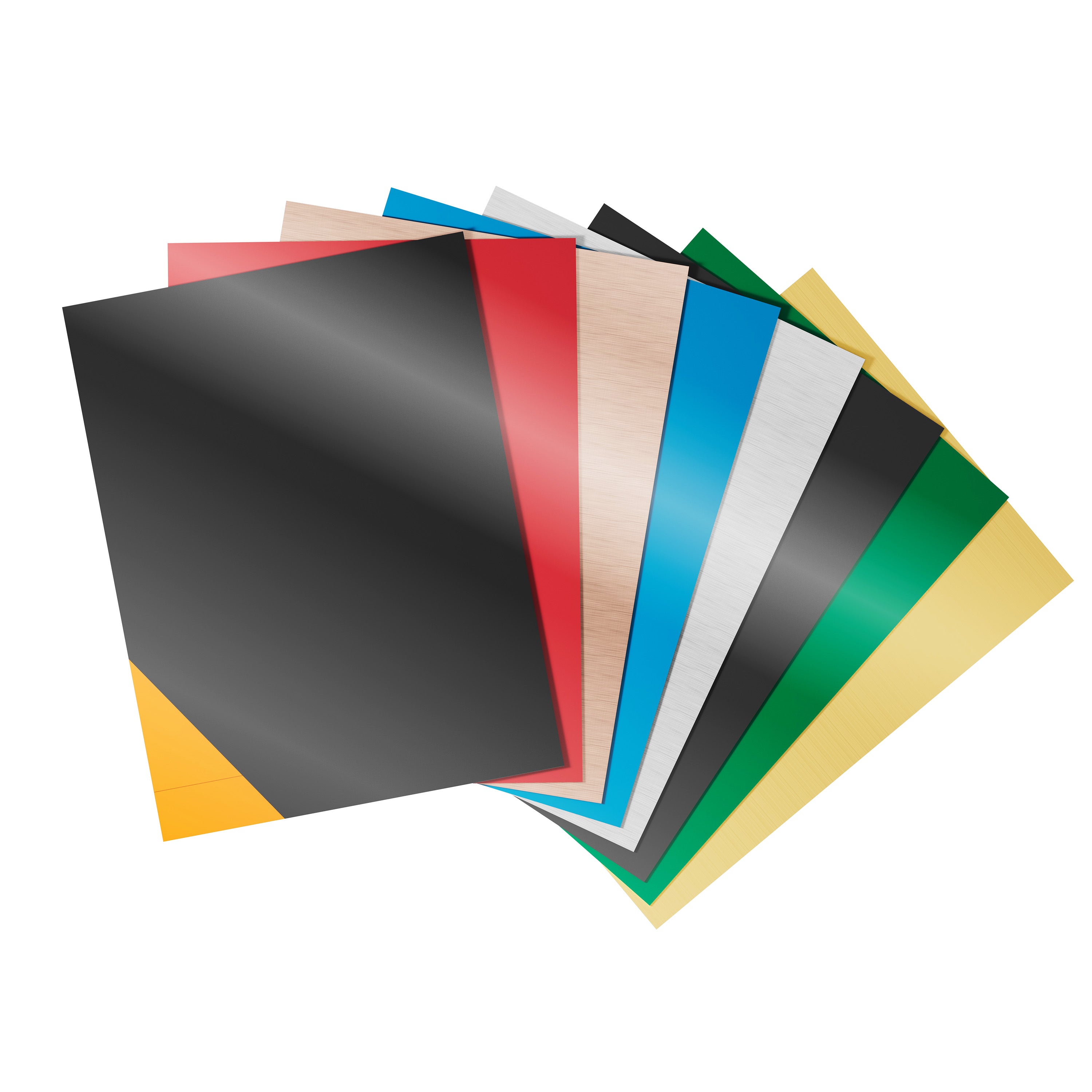

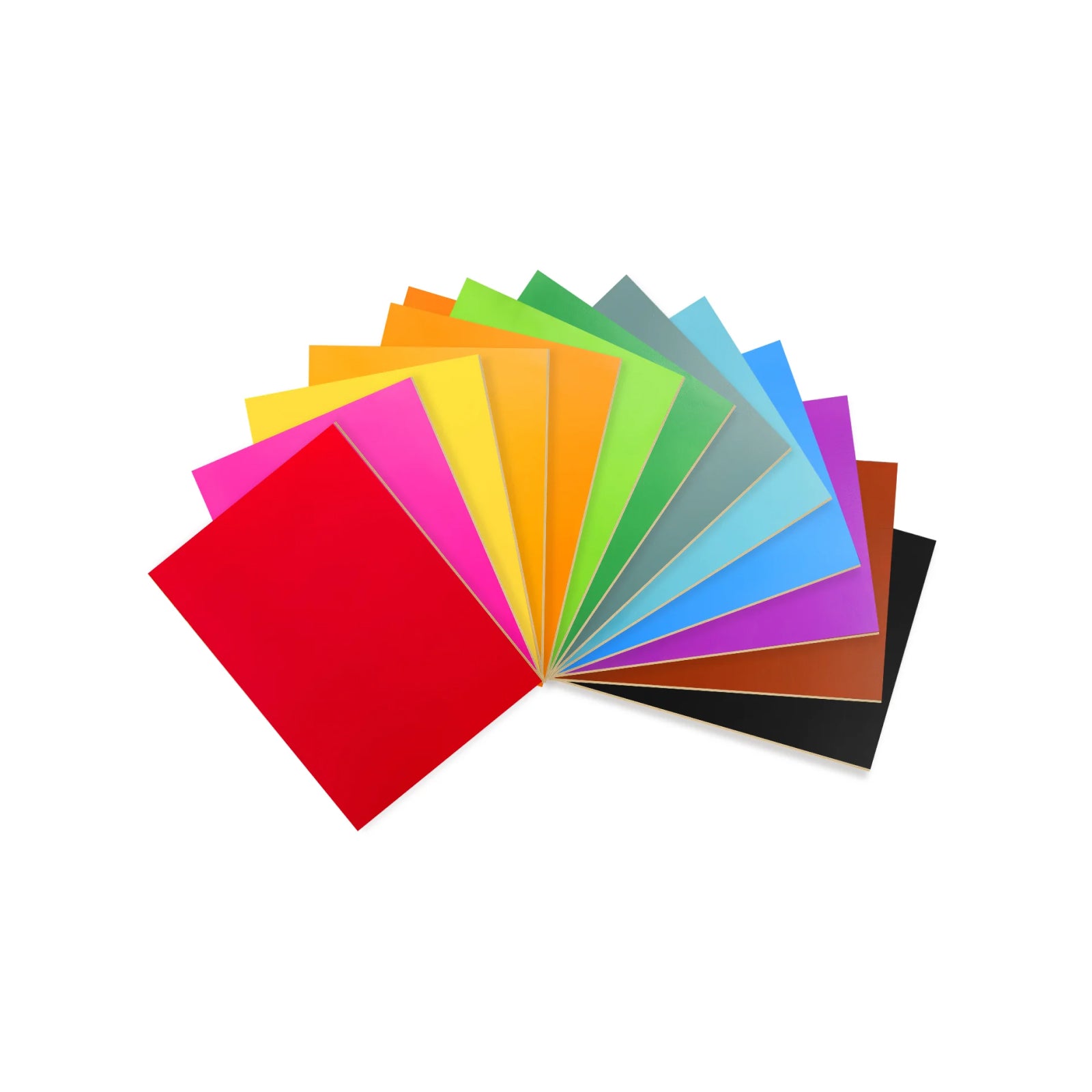
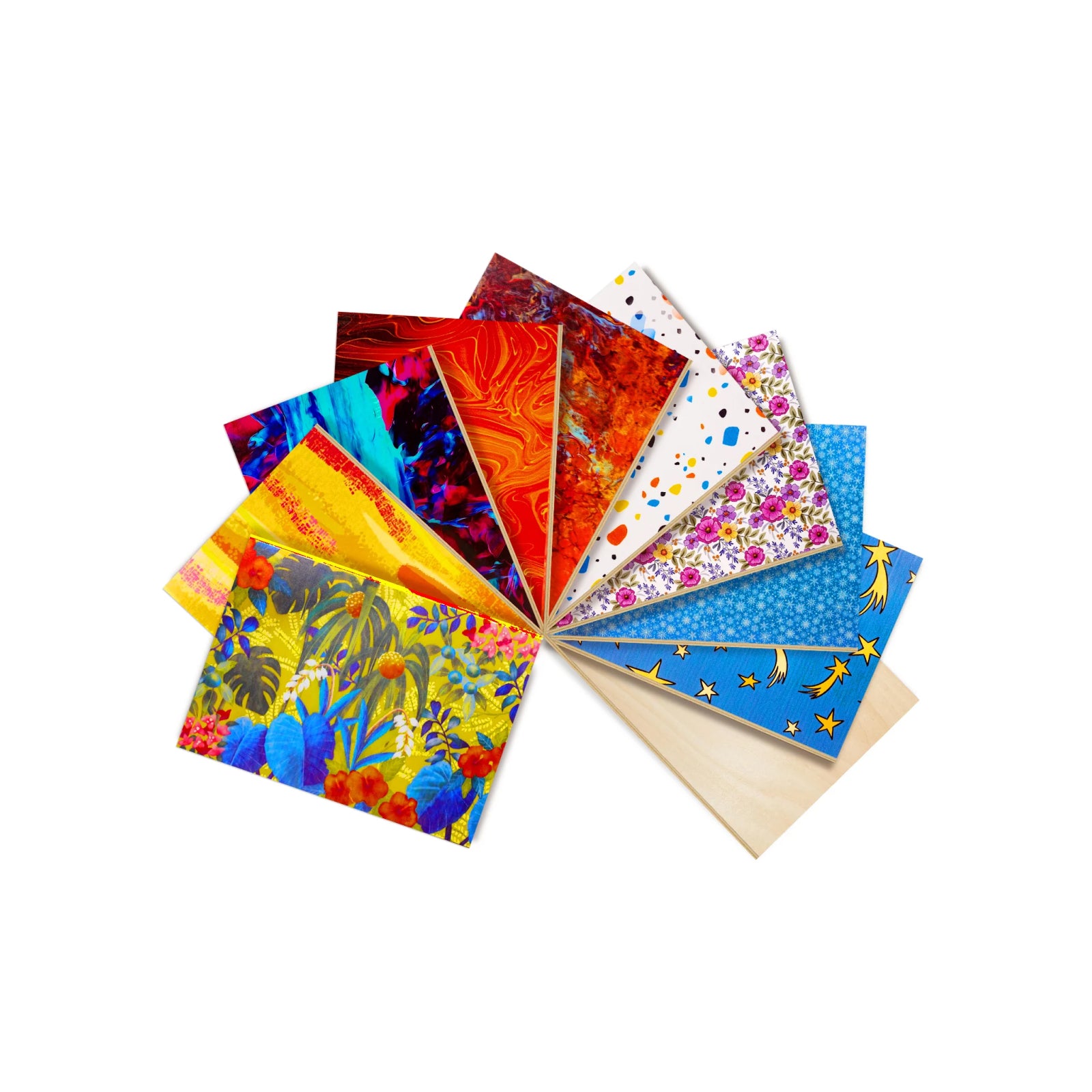


Anyone who has tried laser cutting acrylic has probably hit one of three problems. The edges melt into a bead. The surface turns hazy. Or the beam passes straight through a clear sheet and leaves it untouched. Most of these problems come down to the sheet and the laser.
This guide covers acrylic for laser cutting, from choosing the right sheet to getting clean edges on the finished piece.

What is the best acrylic for laser cutting? Both cast and extruded acrylic can work for cutting. Cast acrylic is a good starting point when you also want a frosted engraving. A CO₂ laser can cut clear and colored acrylic within its rated capacity. With a blue diode laser, choose a sheet that absorbs blue light. The right choice depends on the wavelength, the sheet’s color and thickness, and what you plan to make.
Cast vs. Extruded Acrylic for Laser Cutting
Cast acrylic is commonly made by pouring liquid monomer between glass plates. It polymerizes there into a solid sheet. Cast acrylic typically produces a crisp, frosty-white engraving.
Extruded acrylic is made by melting acrylic pellets and forcing the material through a die to form a continuous sheet. It generally has tighter thickness tolerances and can cost less. Cut quality still depends on the sheet’s formulation and your settings.
| Feature | Cast acrylic | Extruded acrylic |
|---|---|---|
| Manufacturing | Cast between glass plates | Melted and formed through an extrusion die |
| Thickness tolerance | Generally wider | Generally tighter |
| Engraving finish | Typically frosty white | Typically less frosty |
| Cutting behavior | Suitable for laser cutting | Suitable for laser cutting |
| Common applications | Signs, awards, decorative projects | Panels, displays, cost-sensitive projects |
Think about what matters most to the finished piece. A frosted design on a clear award is a good reason to choose cast acrylic. For a display or a part that needs to fit into a slot, consistent thickness may matter more. That’s a reason to consider extruded acrylic.
For diode machines, the sheet’s formulation matters more than the cast or extruded label. Look for a supplier that confirms compatibility with your laser. Trotec's acrylic handling guide covers the cast and extruded differences in more detail.

Laser Wavelengths and Acrylic Color Compatibility
To cut acrylic, the sheet must absorb enough energy from the laser. How much it absorbs depends partly on wavelength.
Blue diode lasers (around 450 nm): See the WeCreat Vision Pro manual for an example of a blue diode wavelength range. Clear, colorless acrylic transmits much of the blue light and is generally unsuitable for cutting with a blue diode. Some tinted sheets absorb enough light to cut. The WeCreat 20 W Vision reference table lists one 3 mm transparent red sample at three passes. That result applies to the listed sample. Pigment formulation, sheet thickness, and settings can all affect whether another tinted sheet will cut. WeCreat’s general acrylic guidance recommends starting with compatible opaque sheets.
CO₂ lasers (commonly 10,600 nm): Acrylic absorbs this infrared light well. A CO₂ machine can cut clear and colored sheets within the manufacturer’s limits. See Epilog’s wavelength specifications and Trotec’s acrylic guide.
Fiber lasers (commonly around 1064 nm): See Epilog’s fiber laser wavelength specifications. Desktop fiber lasers are primarily used for metal marking. Choose a different source for cutting acrylic sheet unless the machine maker specifies support for your material.
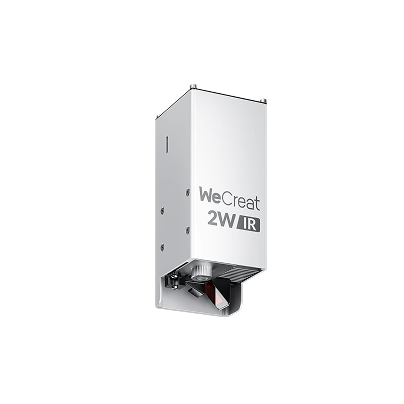
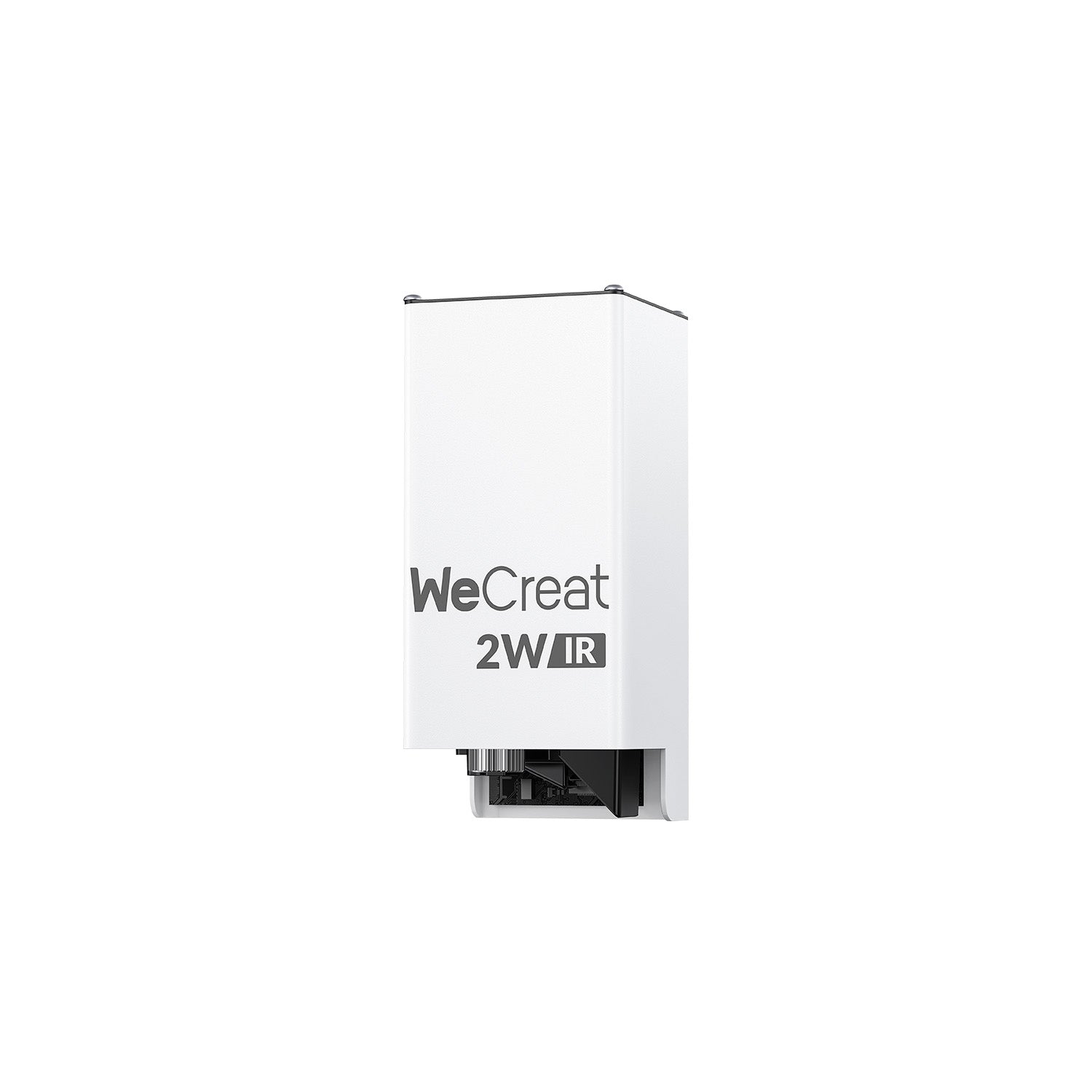
IR laser modules (commonly 1064 nm): WeCreat documents a 2 W, 1064 nm IR module for the Vision Pro. Its module page lists acrylic engraving. The listing covers engraving. Check compatibility with your specific sheet before using the module.
| Laser type | Clear acrylic | Dark opaque acrylic | Colored or translucent acrylic |
|---|---|---|---|
| Blue diode (around 450 nm) | Generally unsuitable (light passes through) | Some sheets can be cut or engraved; check compatibility | Varies with pigment and opacity |
| CO₂ (10,600 nm) | Suitable | Suitable | Suitable |
| Fiber (typically around 1064 nm) | Generally unsuitable | Not a usual choice for cutting | Generally unsuitable |
| IR module (1064 nm) | Generally unsuitable | Engraving where supported | Check sheet compatibility for engraving |
Our guide to CO₂ vs. diode laser engravers compares the trade-offs.

Acrylic Laser Cutting Safety and Material Handling
Check the sheet’s composition and confirm that your laser manufacturer approves it for processing. Acrylic is usually PMMA. Keep PVC and vinyl of unknown composition out of the laser.
When laser processed, PVC can release corrosive and hazardous fumes. Stanford lists PVC as unsuitable and warns that polycarbonate can melt and char. Emory also prohibits polycarbonate in its facility. See Stanford’s material list and Emory’s prohibited-materials list.
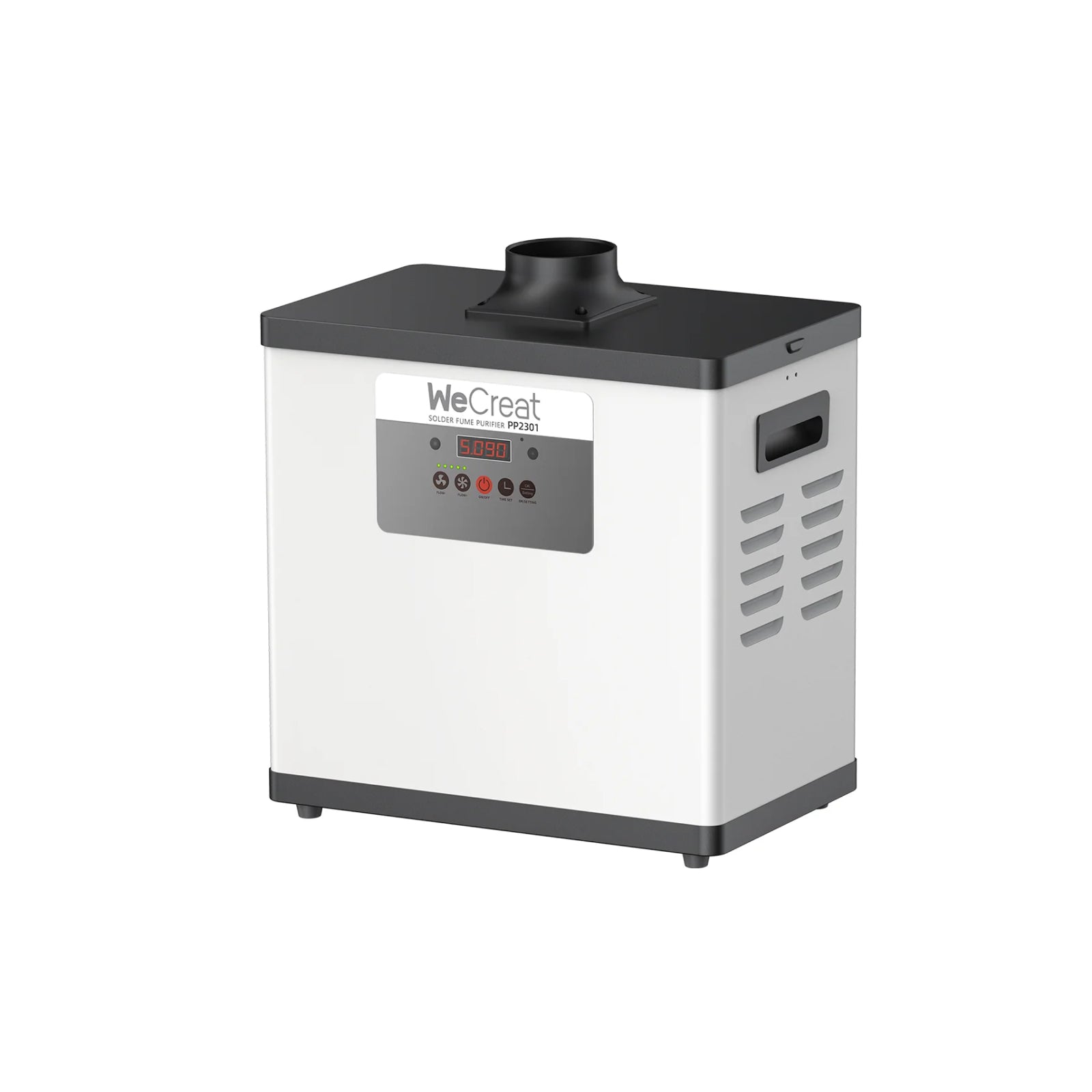
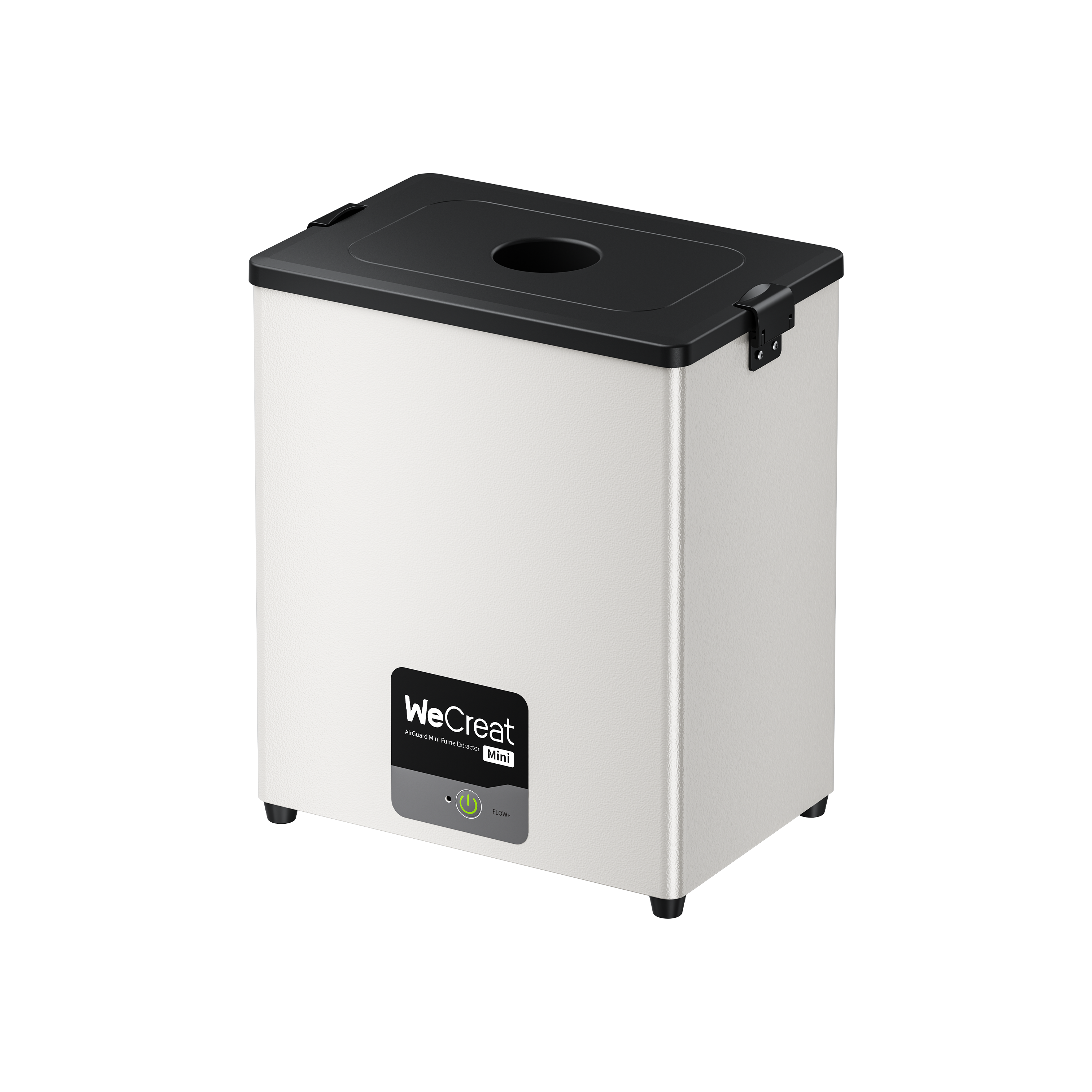
Use the enclosure and exhaust or filtration setup specified by your laser manufacturer. If you use a unit such as the WeCreat AirGuard Ultra, follow its installation and filter replacement instructions. Stay with the machine throughout the cut. Acrylic can ignite. See Trotec’s laser engraving handbook.
Laser Cutting of Acrylic: Recommended Settings
Use published settings as a starting point. Two sheets of the same color and thickness can still cut differently because their formulations differ. Focus and machine setup also affect the result. Run a small test on scrap from the same sheet before starting the full project.
Check your machine’s material specifications. WeCreat lists some dark opaque acrylic as compatible with the 45 W Vision Pro. The 20 W Vision reference table lists a 3 mm opaque dark red sample and a 2 mm opaque brown sample, each at three passes. These settings apply to the listed samples tested on the 20 W Vision.
In WeCreat MakeIt, use a matching material preset if one is available. You can also run a Material Testing Array to compare combinations of power and speed. The array puts those combinations side by side in a grid. Look for a square that cuts all the way through and leaves a clean edge. Record those settings for that sheet.
Thicker sheets generally need more cutting energy. The right mix of speed, power, and passes still depends on the sheet and your laser. Use a small test to compare settings before committing to a full cut.
Choose sheet thickness based on the size and stiffness your project needs. These are project examples.
| Acrylic thickness | Common applications |
|---|---|
| Thin sheet | Lightweight decorations, small ornaments |
| Thickness suited to the size and weight of the piece | Cake toppers, signs, keychains |
| Thicker sheet | Sturdier signs, display pieces |
| Sheet thick enough for added rigidity | Thicker decorative parts and rigid display pieces |

How to Cut Acrylic with a Laser, Step by Step
1. Manage the masking.
Check the sheet and machine instructions before cutting. Remove protective film if its laser compatibility is unknown. Approved paper masking can help protect the surface from smoke residue. Leave it in place only if both the sheet and laser manufacturers approve it.
2. Elevate the sheet.
Use a honeycomb bed, support pins or slats approved for your machine. Raising the sheet can improve airflow beneath it and reduce marks from the support surface.
3. Set focus and framing.
Set the focus for the sheet thickness and check where the design will cut. On the WeCreat Vision Pro, LiDAR autofocus sets the focal distance. The HD camera lets you check the design’s position on the sheet before you start.
4. Configure air assist.
Start with the airflow your machine maker recommends for acrylic. Air assist helps clear smoke and debris from the cut. If you need to adjust the airflow, compare the edge on a test piece first.
5. Run the cut and watch it.
Stay with the machine. If the cut does not go through, stop and inspect the sheet and machine. If there was overheating or a flare-up, follow the manufacturer’s safety instructions before running another test.
6. Clean the edges safely.
Use lukewarm water, mild soap and a soft cloth. Avoid acetone and alcohol-based cleaners unless the sheet maker approves them. Some solvents cause fine cracks called crazing. See ACRYLITE’s cleaning guidance.
Tips for cleaner acrylic edges
- Use the correct focal position.
- Balance power and speed.
- Keep the lens clean.

Acrylic Paint for Laser Engraving: Mask, Engrave, Paint, Peel
1. Mask. Apply a paper mask approved for your sheet and laser.
2. Engrave. Engrave the design or lettering through the mask.
3. Paint. Keep the mask on. Use a fine brush to work a compatible water-based paint into the engraved recesses. Check the paint maker’s instructions first.
4. Peel. Let the paint dry fully, then peel off the mask for crisp, high-contrast results.
Test the paint on scrap first. Check whether your laser can engrave the sheet before you mask the full piece. This matters especially with clear acrylic, which transmits much of a standard blue diode laser’s light. For more techniques, see our guide to laser engraving with color.

Troubleshooting Acrylic Laser Cutting Problems
1. Why does acrylic melt instead of cutting cleanly?
Heat may be building up in the cut. First check that the sheet is compatible with your laser and that the focus is set correctly. Then use a scrap piece to test changes to speed, power, or pass count one at a time. Compare the edges before you cut the full design.
2. Why does my diode laser pass straight through clear acrylic?
Clear PMMA transmits blue light. Use an acrylic that absorbs the laser wavelength, or a CO₂ laser.
3. Why are the cut edges cloudy or frosted?
Smoke residue can settle near the cut, and incorrect focus can also affect the edge. Check the focal height and the recommended air assist setting. If both manufacturers approve paper masking, try it on scrap to see whether it helps keep the surface clear.
4. Why does acrylic catch fire during cutting?
Acrylic can ignite as heat builds up. If you see a flare-up, stop the laser and follow the machine maker’s fire-safety instructions. Once the machine is shut down and cool, check the optics, airflow, and settings before restarting. Follow the manufacturer’s inspection instructions.
5. Why do small acrylic letters melt together?
Closely spaced cuts around small letters and tight curves can build up heat in one area. Try a slightly bolder font or a cut path that spaces out nearby cuts. Test the change on scrap before cutting the final design.
Choosing Acrylic and Cutting It Well
Check the sheet’s composition, match it to your laser’s wavelength, and test on scrap from the same sheet. Use that test to check the cut edge before you start the full project.
The WeCreat Vision Pro has a 45 W diode laser with BeamFocus. It can cut some dark opaque acrylic for projects such as signs and cake toppers. LiDAR autofocus sets the focal distance. The HD camera lets you position the design on the sheet, which is useful for signs, cake toppers, and other pieces where alignment matters.
 |
Laser source | 45W diode with BeamFocus (optional 2W IR module) |
| Working area | 19.7 × 12.6 in | |
| Positioning | HD camera, LiDAR autofocus, up to 140 mm clearance without the tray | |
| Acrylic compatibility | Supports cutting some dark opaque acrylic; material formulation and thickness affect results |
Acrylic Laser Cutting FAQs
Q1. Can a diode laser cut clear acrylic?
Most standard blue diode lasers struggle to cut clear acrylic because clear PMMA transmits much of the blue light. For diode cutting, look for a sheet that absorbs that wavelength. Pigment, opacity, thickness, and laser power all affect how it cuts.
Q2. Should I remove the protective film before laser cutting acrylic?
Remove protective film if its laser compatibility is unknown. Leave paper masking on only if the sheet and laser manufacturers approve it.
Q3. How do I clean laser-cut acrylic without causing cracks?
Use lukewarm water, mild soap and a soft cloth. Avoid strong solvents unless the sheet manufacturer approves them.
Q4. What is the difference between 45W optical power and 60W-like cutting performance on the Vision Pro?
The Vision Pro has a 45 W diode laser. WeCreat’s Vision Pro product page uses “Cut like 60W” to describe BeamFocus cutting performance. The optical output is 45 W, and the claim does not specify an acrylic cutting limit.